Tutorial · Purchase orders
How to receive a delivery and close a purchase order
Ordering is half the loop; the other half is telling the app what actually showed up. Receiving a purchase order takes two minutes, keeps your to-do lists honest, and quietly feeds one of the app's smartest features: measured, real delivery times per supplier.
Watch the 55-second walkthrough
Find the order under Purchase orders and press Receive
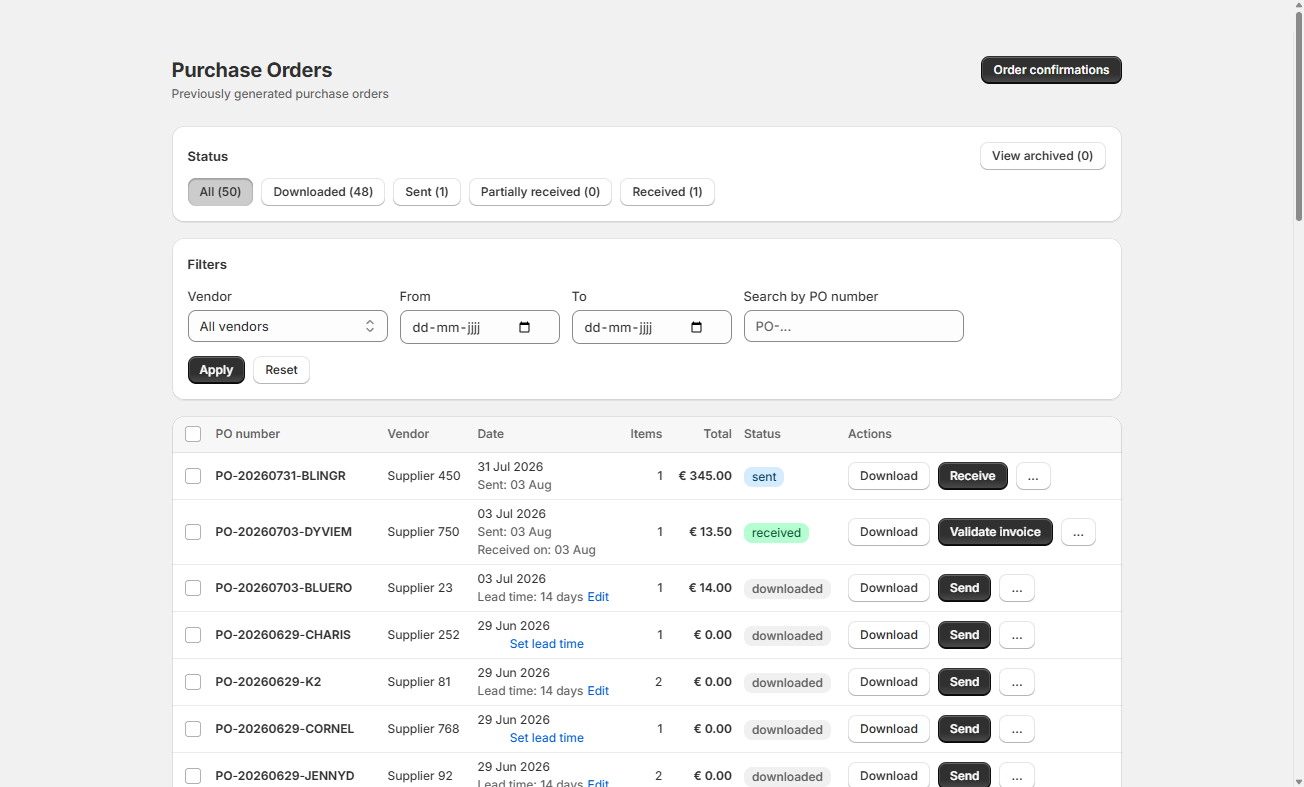
Open View more → Purchase orders. This page tracks every purchase order you've exported, with status tabs that mirror the real world: Downloaded (created, not yet sent), Sent, Partially received and Received. The flow follows the buttons: after you've sent an order to your supplier, press 'Send' on its row — a confirmation asks 'Mark PO … as sent?'. The button then changes into 'Receive', and that's the one you press when the boxes arrive.
The Purchase orders page with status tabs
Count the boxes, fill in two numbers per item
The Receive page shows every line of the order with the ordered quantity, and two fields: Received and Rejected — for pieces that arrived damaged or wrong; the 'Defect report' button is right there for the paperwork. Everything accounted for? Press 'Save' — the order moves to Received, and the items leave your 'in order' status so the Inventory dashboard counts them as decision-ready again.
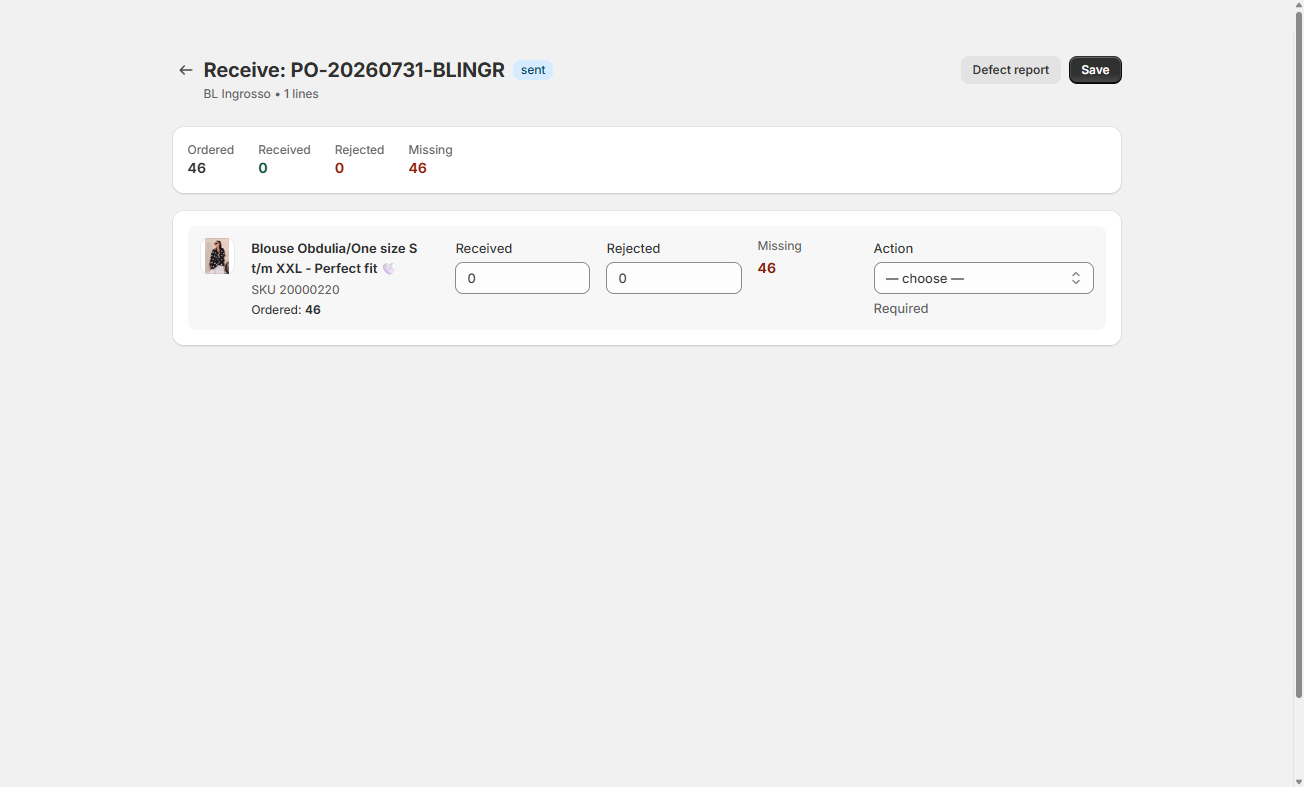
The Receive page: ordered versus received per line, with a required action for anything missing
Something missing? Choose what happens next — per item
The Action dropdown becomes required the moment received plus rejected doesn't add up to what you ordered. For every missing piece you decide on the spot:
Partial received — wait for the rest: the order stays open; the app keeps expecting the remainder.
Re-order — mark as needed: the missing pieces flow back into your reorder advice, so next week's run picks them up automatically.
Re-order — create new PO immediately: straight to a fresh purchase order for the shortfall.
Cancel — no longer needed: close the gap and move on.
This is the difference between 'I think supplier X still owes me something' and a system that remembers it for you.
Why receiving is worth two minutes: the app starts measuring your suppliers
Every completed send-to-receive cycle gives the app a real data point: how long this supplier actually takes, from order to delivery. That measured average appears as 'Calculated' in Vendor Settings, next to the lead time you estimated yourself.
The gap between those two numbers is one of the most valuable facts in your buying operation — every reorder deadline depends on lead time being right. A supplier who promises 7 days but delivers in 14 has been silently making all your 'order by' dates a week too optimistic.
Good to know: receiving does not change your Shopify stock — your normal inventory process stays the boss of actual stock numbers.
Can't find your answer? Email us — we read everything.
Email support