TUTORIAL · INVENTORY
How to do your weekly reorder run in the Inventory dashboard
Once a week, you decide what to buy. This guide walks you through that run in Fashion Analytics — about 15 minutes, ending with a ready-to-send purchase order for every supplier involved.
What you will learn

Watch the 80-second walkthrough
The list is a to-do: red 'Today' means order now or sell out
Open the Inventory dashboard. What you're looking at is your entire catalog, one row per variant, ranked by how urgently each one needs to be reordered. Behind that ranking sits a simple idea: the app measures how fast each variant sells, and how many days your current stock will last at that pace. It also knows how long your supplier takes to deliver — the lead time you set in Vendor Settings — and keeps a small safety buffer on top. So the question each row answers is: how many days do I have left before I must order this, or it will sell out before the new delivery arrives? When that number reaches zero, the app shows a red 'Today': you're at the last sensible moment to reorder. The list sorts these to the top, which is why the dashboard works as a to-do list.
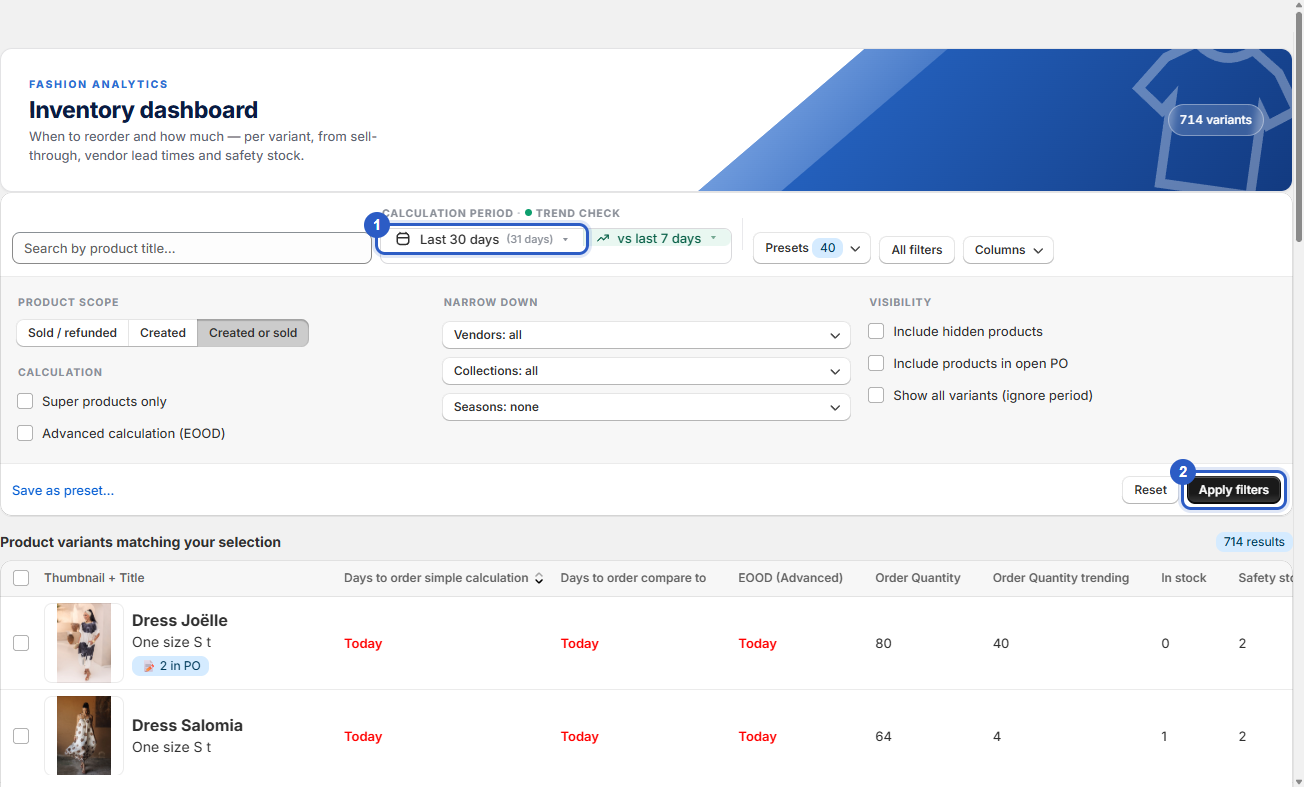
The Inventory dashboard: filters on top, the ranked reorder list below
Step 1 — Set the period to 'Last 30 days': it decides every number on the page
Before reading any advice, look at the period picker in the top bar. The app measures sales speed inside this window, so the same product can get a different advice on a different period — both correct, answering different questions. Click the date button to open the picker. Last 30 days is the balanced default for a weekly run: recent enough to follow the season, long enough to smooth out a slow Tuesday. Last 7–14 days reacts faster — useful for fast-moving fashion with short-lead-time vendors. A season (set up in Settings) answers buying questions like 'what did this do last summer?' — that's for pre-orders, not the weekly run. Pick Last 30 days, click Apply, then Apply filters. The whole table recalculates.
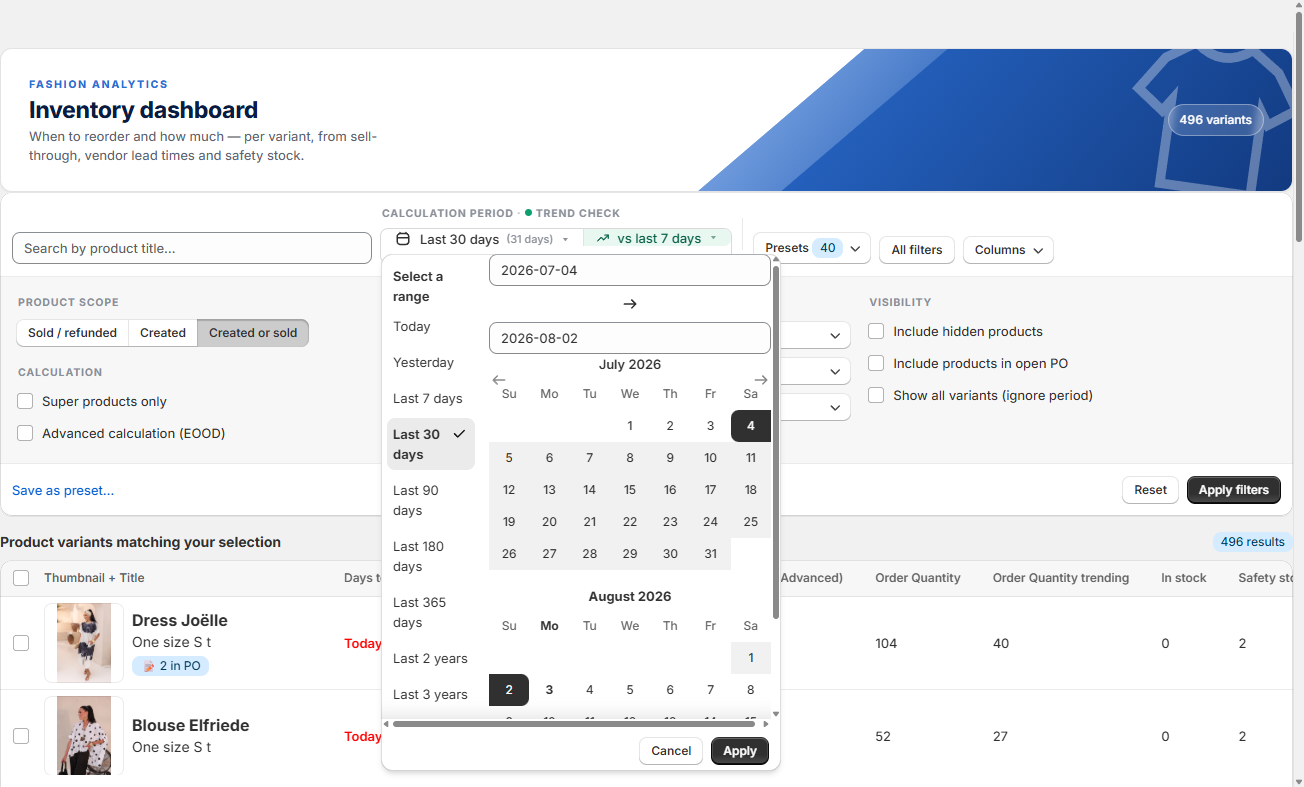
The period picker: presets on the left, custom range on the right
Step 2 — 'Order Quantity' tells you how many; check 'In stock' before trusting 'trending'
Here is a row from the top of the list — a bestselling dress that's practically gone. In stock: 1 — one piece left of a dress that sold all month. Every days-to-order column screams red 'Today'. Then the two numbers that matter most. Order Quantity: 64. This is the app's suggestion for how many to order: it takes the dress's sales pace from your period and calculates how many pieces you need to cover the delivery time plus your safety buffer, minus what's still on the shelf. Order Quantity trending: 4. The same suggestion on a faster clock (recent days instead of the whole period). This column is your trend detector — and it needs one piece of judgment: when trending is far above normal, the product is accelerating, trust the higher number. When trending is far below normal and the item still has stock, it's genuinely cooling down — order less. But when trending is low and stock is nearly zero — like this dress — the low number means nothing: it couldn't sell because there was nothing left to sell. The period average is the real demand, so 64 is the number to trust. One more column worth a glance: Return rate. Around 20% is on the high side — not a reason to skip the order, but a reason to check what's driving those returns before you reorder a third time.
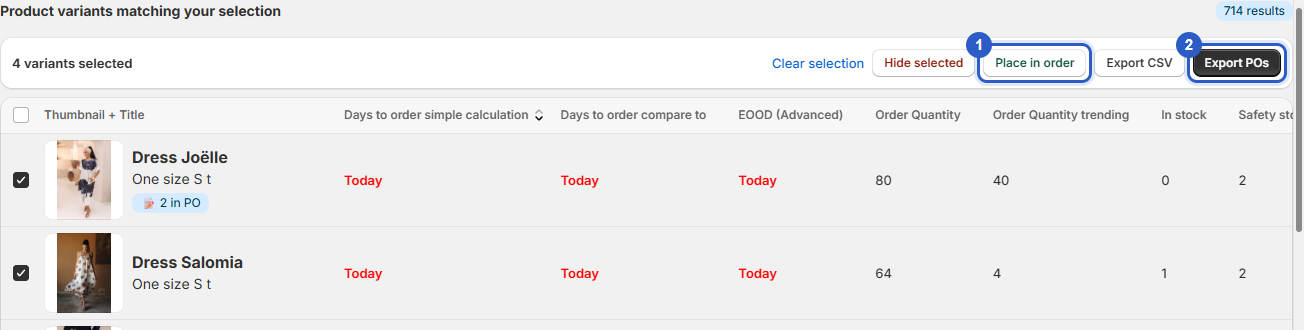
A nearly sold-out bestseller: Order Quantity 64, trending 4, In stock 1
Step 3 — Select everything at once: the app creates one purchase order per supplier
Tick the checkbox on every row you want to order. A bulk bar appears above the table with the available actions. Click Place in order: the selected variants are marked as 'in an open purchase order' and disappear from the list — what's already on order shouldn't keep shouting 'Today' at you. Then click Export POs — and note the plural. You don't have to sort your selection by supplier; the app does that for you. If your selection spans five vendors, you get five purchase-order PDFs in one go, each with only that vendor's items, quantities pre-filled, and the order email pulled from Vendor Settings. Adjusted a quantity in your head along the way? Edit the number on the PO before sending.
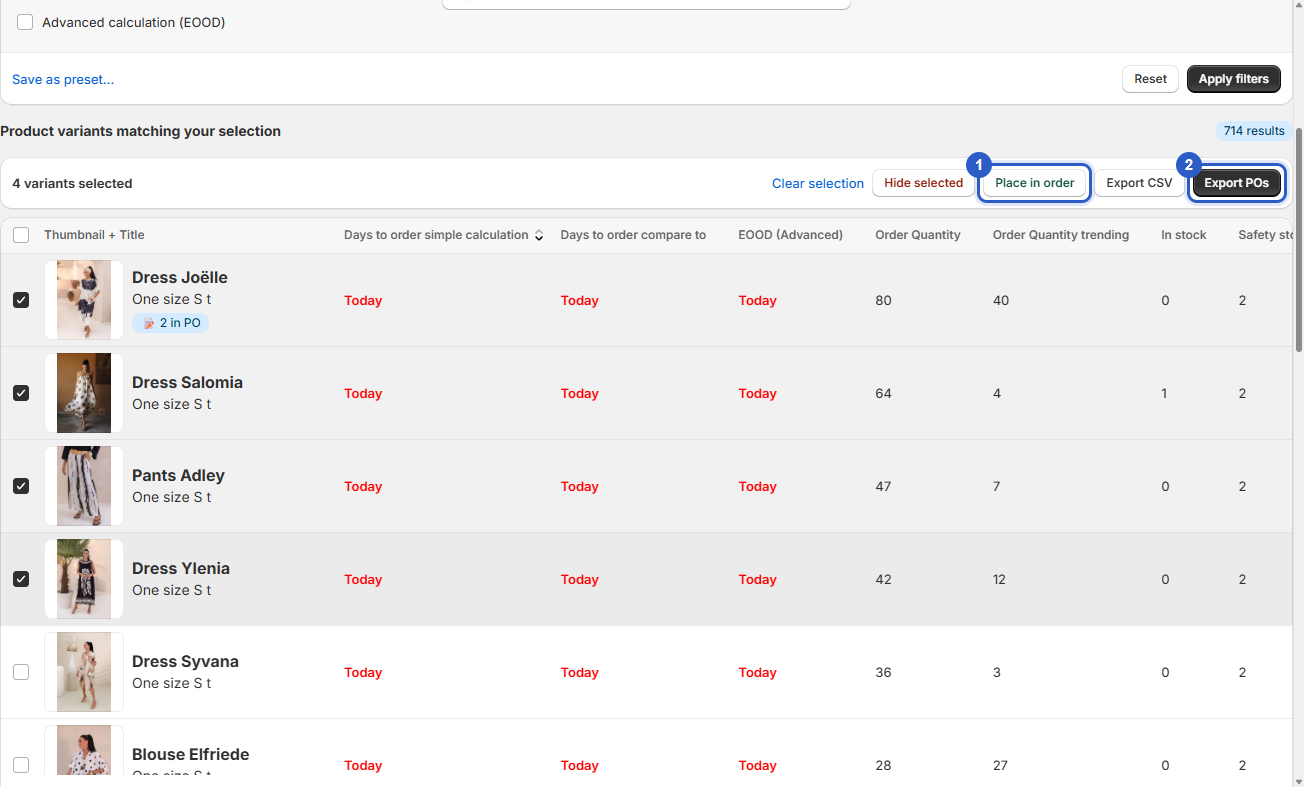
The bulk bar with Place in order and Export POs
Two settings that make next week's run faster
- Fill in each vendor's Order email in Vendor Settings once, and every future PO comes out send-ready. Lead times matter even more: they decide when items turn red.
- Save the whole filter setup via 'Save as preset…' — name it after the routine and next week it's one click.
A sold-out bestseller costs €1,000+ per week — this run prevents it
The variants at the top of this list are, almost by definition, your biggest earners. When one of them stands sold out for a week while its page keeps pulling hundreds of visitors, four figures of revenue evaporate — for a single item. The weekly run protects exactly the products that earn most of your money, the trending column keeps you from over-buying the ones going out of fashion, and the per-vendor PO export removes the most tedious half hour of the week.
Can't find your answer? Email us — we read everything.
Email support