How to free up cash with the Dead stock page
How to free up cash with the Dead stock page
Every fashion store has money hiding on its shelves: items bought with real cash that stopped selling months ago. That money isn't lost — but it's frozen, and it can't buy the collection that would sell. The Dead stock page finds the products that sit on the shelf unnoticed and ranks them by exactly that frozen capital.
What you will learn
- What the Dead stock page is for
- What each statistic tells you
- How to act: export or tag
Walkthrough: the Dead stock page explained (1:27).
Choose your look-back window and scope
Set the look-back period first: anything that didn't sell inside that window counts as dead stock. Any range can be the right one — a month, a quarter, a whole season — as long as it matches the question you're asking. Know that on a very short window every normal product has quiet days, so half your catalog qualifies as "dead". The Product scope switch controls which products enter the list: Sold / refunded in the window, Created in the window, Created or sold, or simply All. Under Narrow down you can limit the list to a collection or a season — seasons are ranges you define yourself on the Settings page, like Winter, Summer or Christmas.
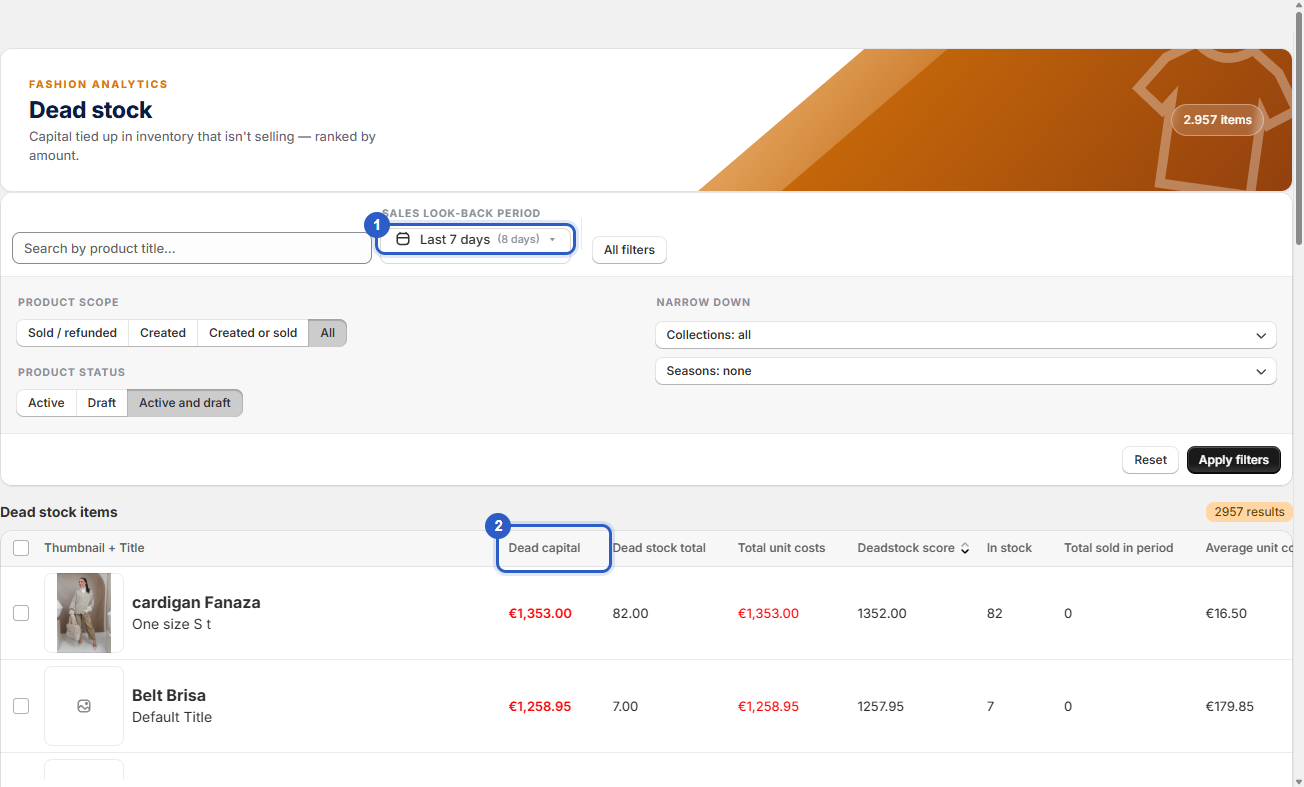
What each column tells you
- Dead capital — total wasted capital locked up in this product; the euro ranking.
- Dead stock total — total units locked up as dead stock.
- Total unit costs — total capital locked up in stock for this product.
- Deadstock score — priority score; higher means more urgently dead stock.
- In stock — current stock level.
- Total sold in period — units sold in the selected period.
- Average unit cost / Average price — cost and selling price per unit.
Hover any statistic in the app for this explanation — it works the same on the Inventory and Marketing dashboards.
Sanity-check the cost data before trusting the ranking
Scan Average unit cost against Average price. A cost above the selling price almost always means a data-entry error in your store — and because Dead capital is built on cost, one wrong cost price can shove an innocent item to the top of the ranking. Fix the cost in Shopify first; the ranking is only as honest as the numbers behind it.
Give every top item one route out — then execute it
Work down the list by Dead capital and assign each item one of four routes: bundle it with a bestseller, put it in the sale now (a mild early discount recovers more cash than a forced deep clearance later), return it to the vendor if your terms allow, or move it to your physical store. To execute, select the items — a bulk bar appears with Export CSV, Export PDF and Add tag. Export for your own spreadsheet or a team briefing, or write a Shopify tag to the products so your smart collections, email flows and ad tooling pick the selection up.
💡 Good to know
- The top 20 rows usually hold most of the frozen money — start there.
- Come back monthly: the items you routed should be gone or shrinking, and the top-20 total should be lower.
- An item that survives two rounds untouched needs a harder route — deeper discount or vendor return.
Cash today beats book value tomorrow
Dead stock loses value while it waits: styles age, seasons turn, and the eventual clearance price drops every month. Liquidating a month earlier means both a higher recovery price and a month more use of the cash — buying stock that actually turns.
Still have questions about the Dead stock page?
Our team is happy to walk you through your own data.
✉ Email us support@fashion-analytics.com