The Hidden products & variants tab explained
The Hidden products & variants tab explained
Some products just don't belong in your daily view — most of all the items you can no longer reorder, but also discontinued styles or products you never want to promote. Hide them from your dashboards and they move to one place: the Hidden products & variants tab, where nothing is deleted and everything can come back with one click.
What you will learn
- Hide products from your dashboards
- Search and sort your hidden variants
- Put them back when you need them
Walkthrough: the Hidden products & variants tab explained (2:09).
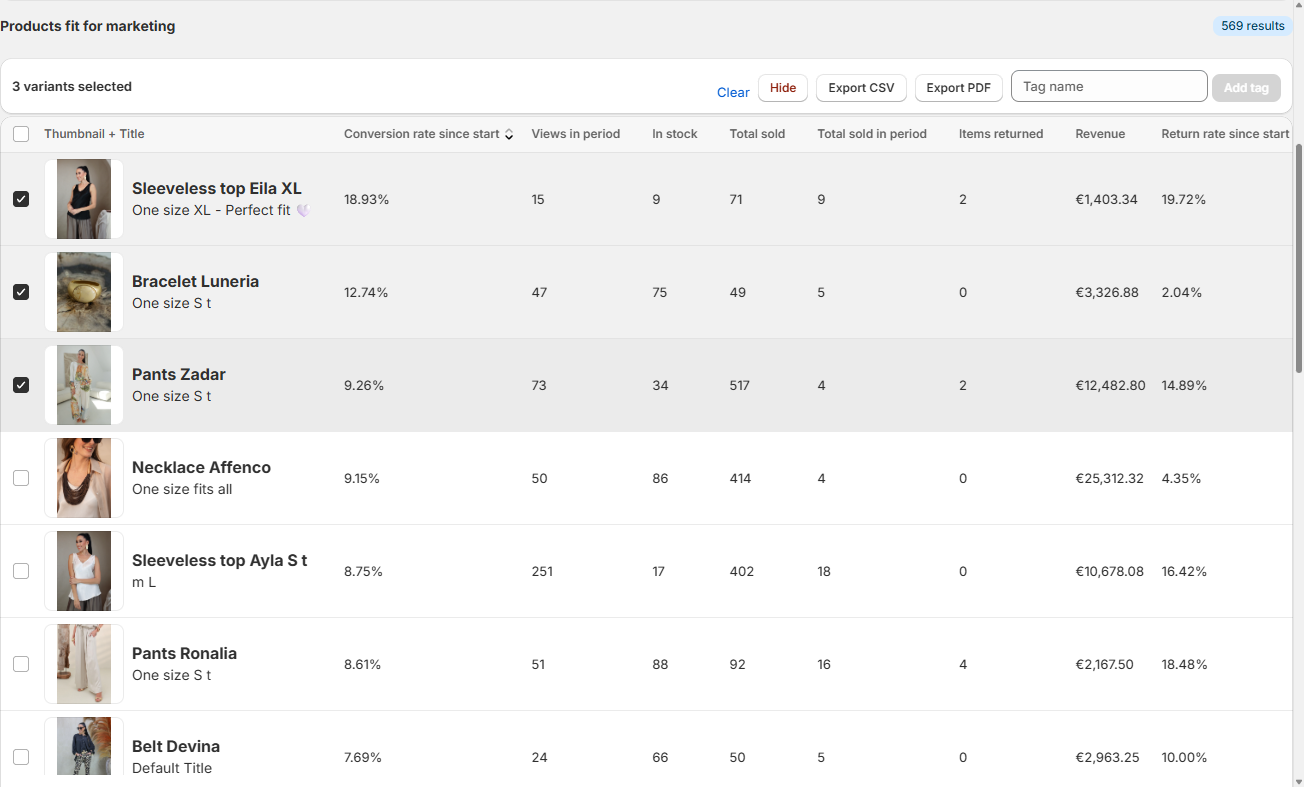
Hiding happens on the dashboards — select rows and click Hide
On the Inventory and Marketing dashboards, select the rows you want out of the way and click Hide. They disappear from that dashboard and move to this tab. The biggest reason to hide something: an item that can no longer be reordered — but any variant you don't work with qualifies. Nothing is deleted; it is only out of sight.
One tab, two lists: each dashboard has its own hidden selection
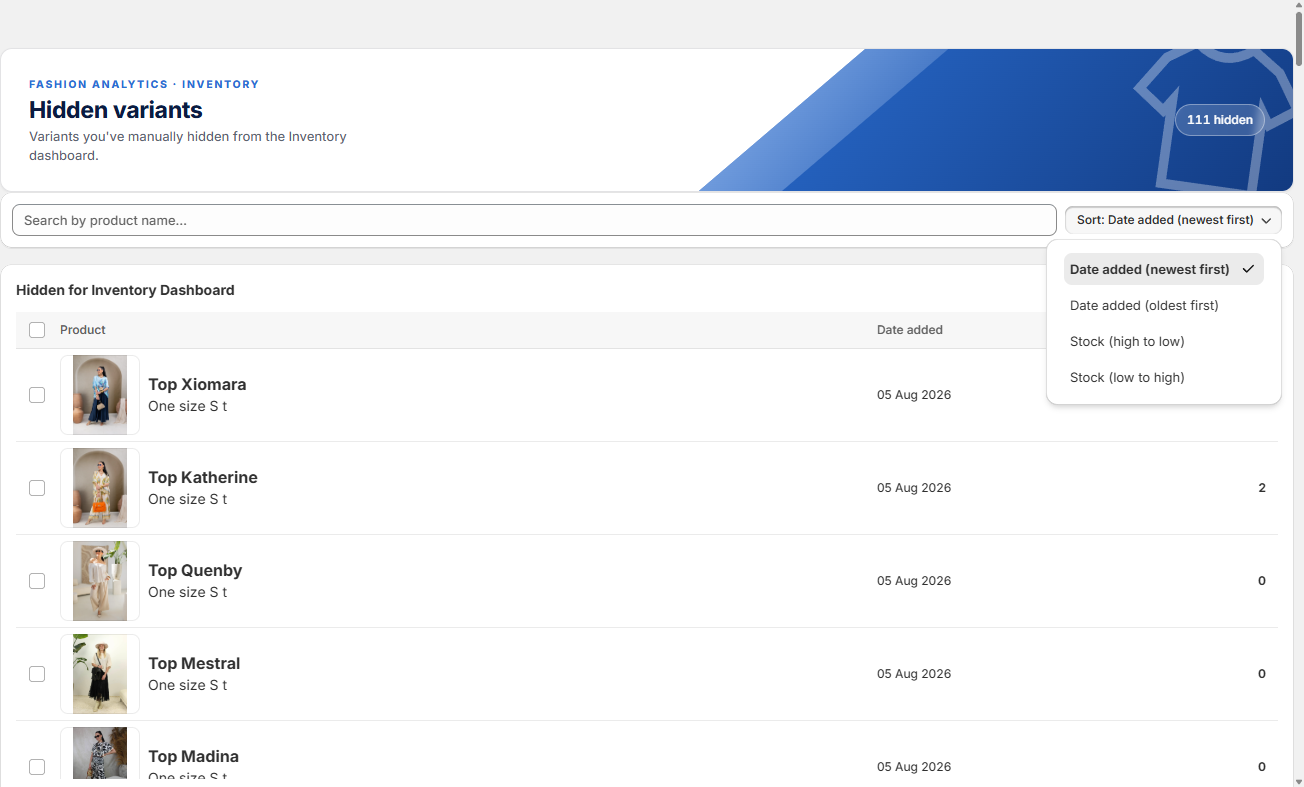
The tab is split per dashboard. Hidden for Inventory Dashboard holds everything you hid on the Inventory side. Hidden for Marketing Dashboard is a separate list — for products you only want out of your marketing work, while they stay on the Inventory dashboard. Every row shows the product, the date you hid it, and the current stock. That In stock column is worth a regular glance: a hidden variant that suddenly has stock again may deserve a comeback.
Find anything with search and sort
With hundreds of hidden variants you don't scroll. Type part of a product name in the search bar and the list filters instantly. The sort button orders the list by Date added (newest or oldest first) or by current Stock (high to low, or low to high) — sort by stock to spot the hidden items that are back in supply.
Unhide puts items back — statistics intact
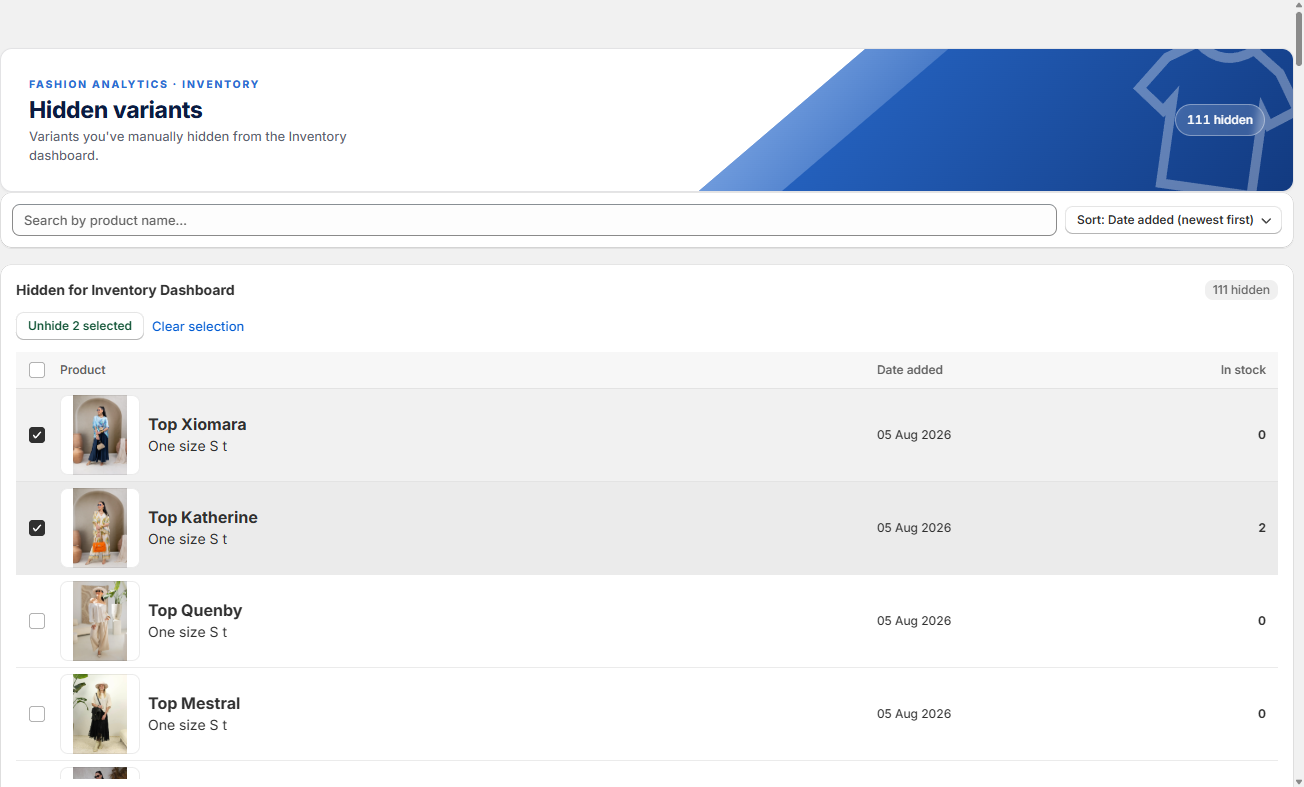
Tick the variants you want back and click Unhide selected. They return to the dashboard they were hidden from, with all their statistics intact — hiding never pauses the data. Clear selection empties your selection without putting anything back. Each of the two lists has its own unhide button.
Peek at hidden items without unhiding them
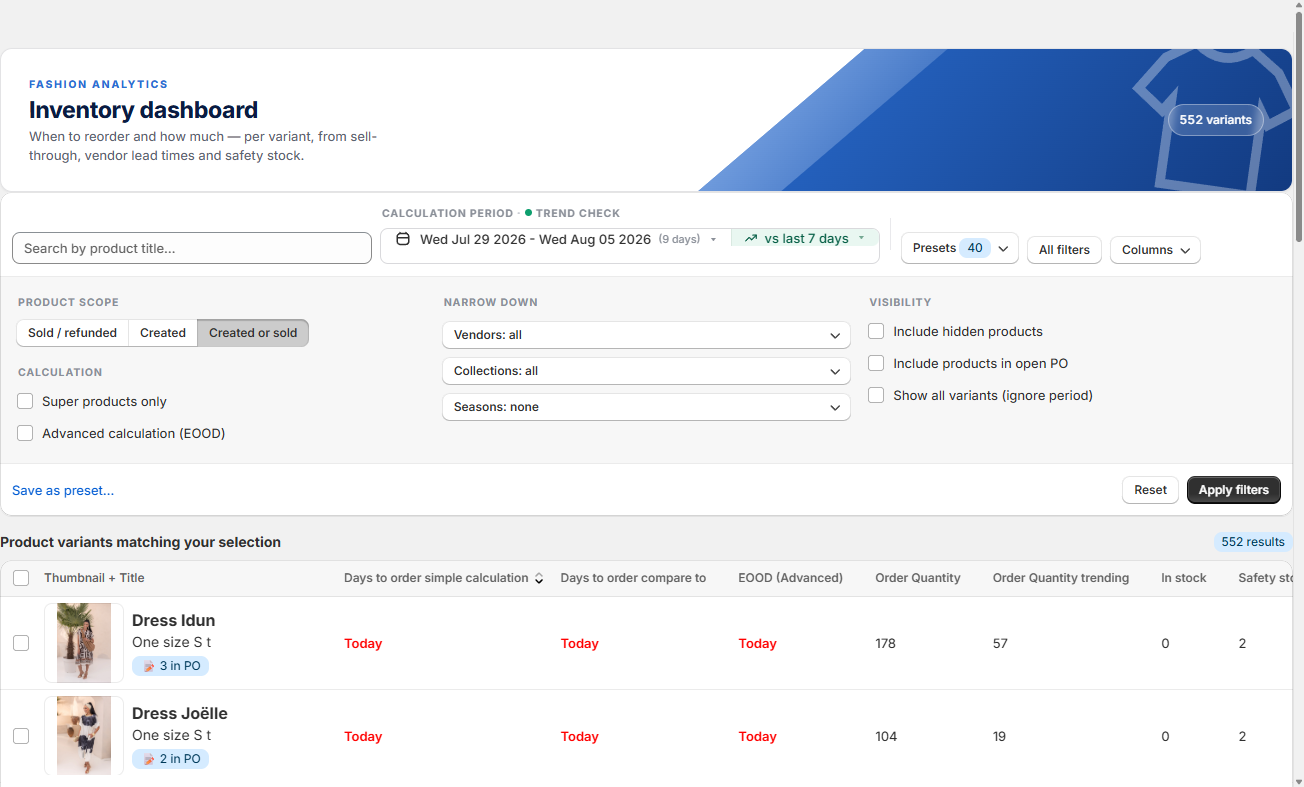
On the Inventory dashboard you can tick Include hidden products (under Visibility) to see your hidden variants in the list temporarily — handy for an audit, or to check how a hidden item is doing before you bring it back.
💡 Good to know
- Hide the items you can't reorder right after your weekly reorder run — your dashboards stay focused on what you can actually act on.
- Check the In stock column now and then: new stock on a hidden variant is a signal to unhide it.
- Hiding a product for the Marketing dashboard does not touch your Inventory view — the two lists are fully separate.
Your dashboards only show what you work with.
Hide what you don't work with, find it back with search and sort, and unhide it the moment it earns a place again.
Still have questions about hidden products & variants?
We're happy to help you get more out of it.
✉ Email us support@fashion-analytics.com