The In order products & variants tab explained
The In order products & variants tab explained
Everything you have on order at your suppliers lives in one place. Variants on this tab are excluded from reorder advice until they arrive — and the list cleans itself: the app recognises deliveries in Shopify automatically. You only step in when plans change.
What you will learn
- Use the In order tab
- Let deliveries clear themselves
- Remove items or move them to hidden
Walkthrough: the In order products & variants tab explained (2:22).
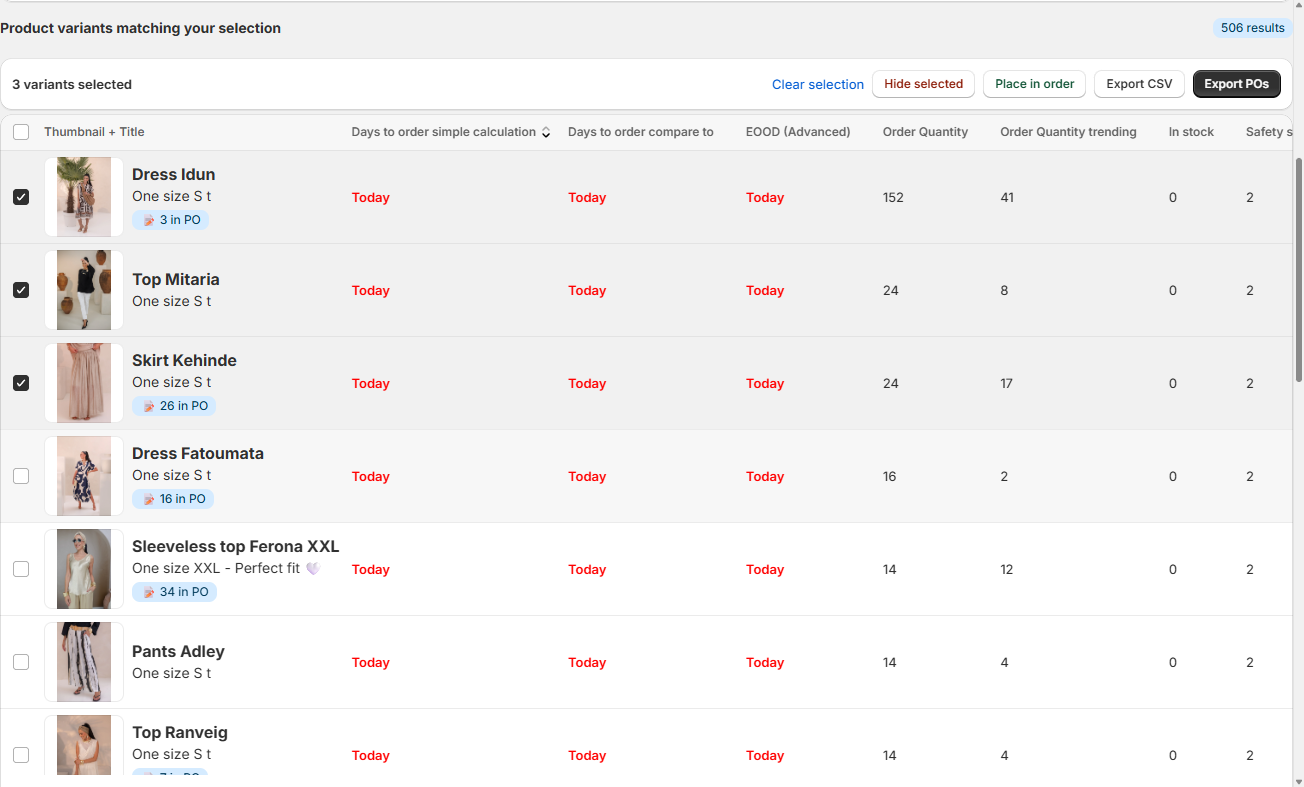
Ordering starts on the Inventory dashboard with Export POs
Select the variants you want to buy and click Export POs: the app creates a purchase order per supplier, ready to send. Not using purchase orders? Order manually or through an external system and click Place in order instead — no PO document is created, but the products are tracked on the In order tab just the same.
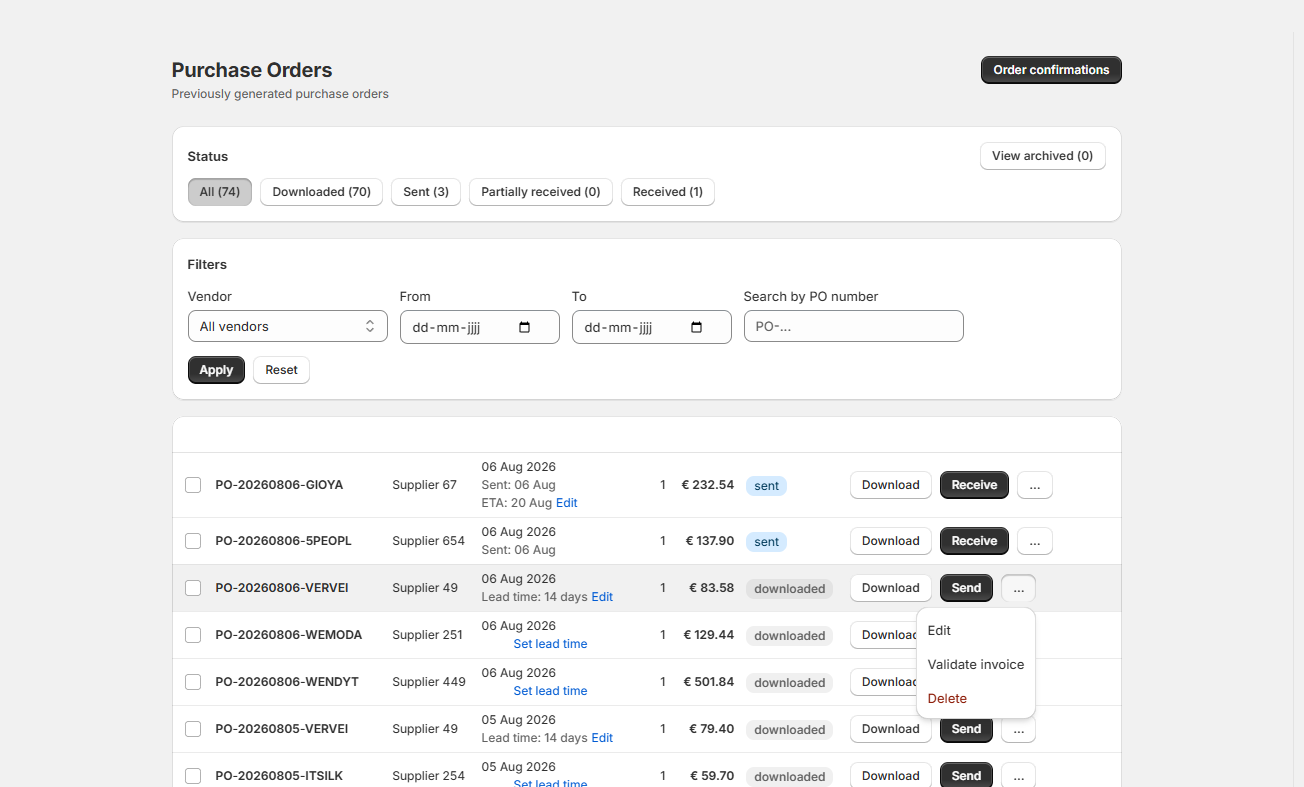
Adjust the PO if needed, then hit Send
The Purchase orders tab lists every PO with its status: downloaded, sent, partially received, or received. Need to change quantities or items before sending? Click the ⋯ menu on the purchase order and choose Edit. Done? Click Send — the moment a PO is sent, its products appear on the In order tab.
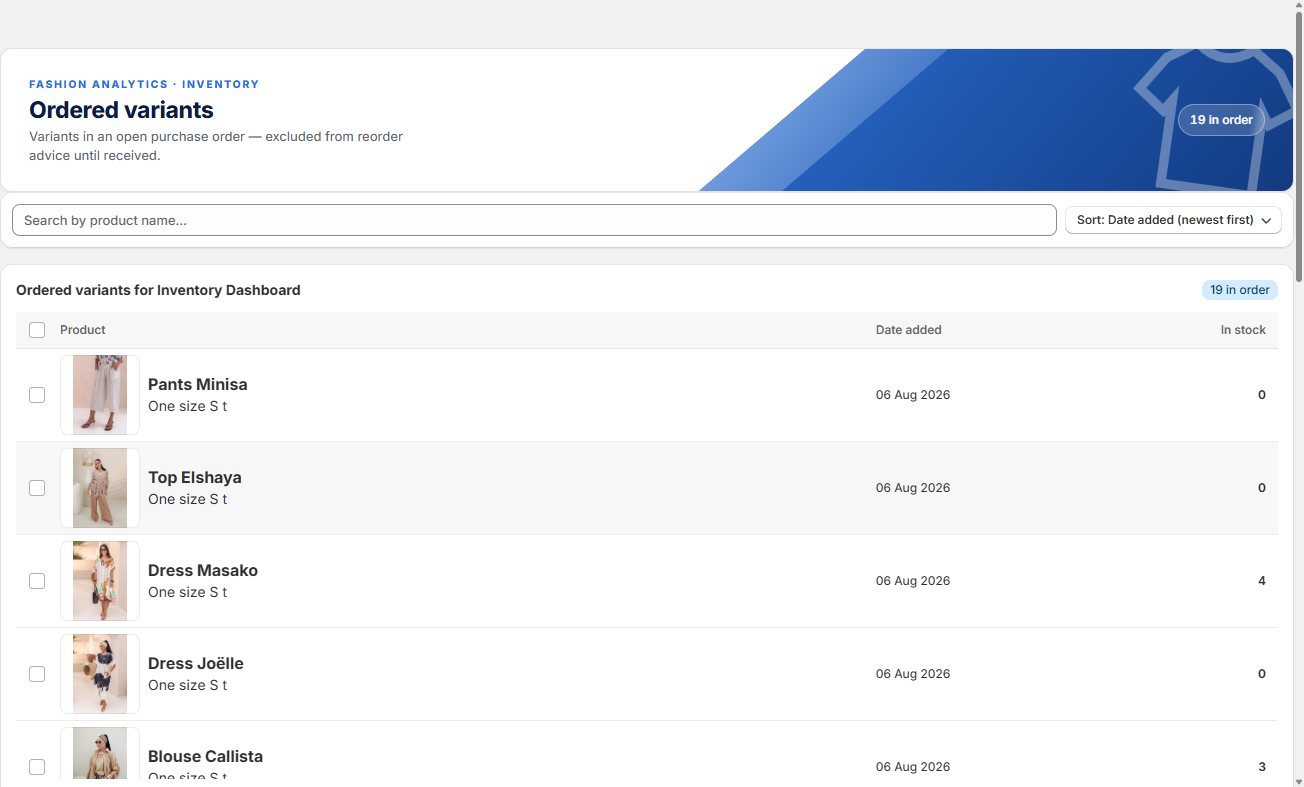
Deliveries clear the list automatically
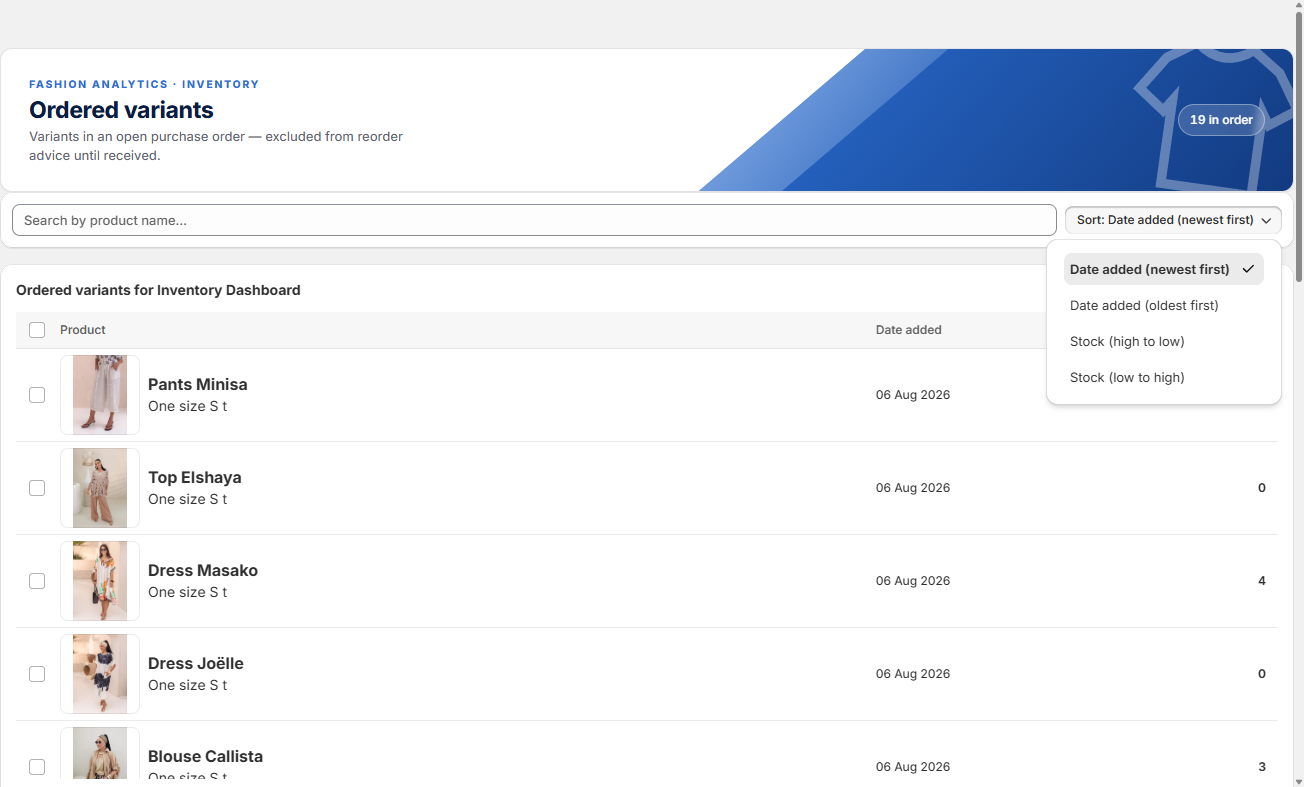
Every row shows the product, the date it was added and the current stock. When your delivery arrives and the stock is added in Shopify, the app recognises the delivery and removes the item from this tab — automatically. Partial delivery? You get a notification. And customer returns are recognised automatically too, so they never confuse the count.
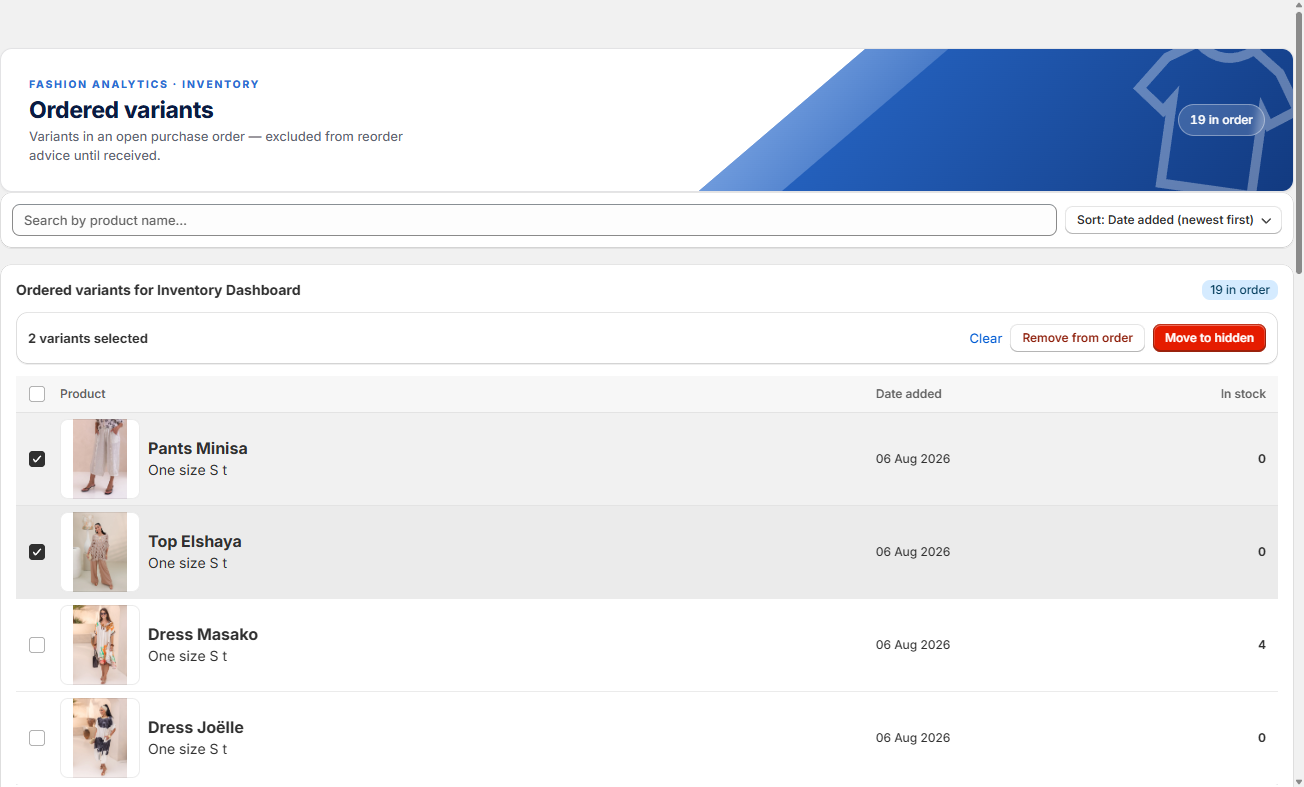
Plans change? Remove from order — or move to hidden
Select variants and click Remove from order: they go straight back to the Inventory dashboard. Or click Move to hidden — handy when an item turns out to be sold out at your supplier and won't be coming back.
Find anything with search and sort
Type part of a product name in the search bar and the list filters instantly. The sort button orders the list by Date added (newest or oldest first) or by current Stock (high to low, or low to high).
See ordered items on the Inventory dashboard when you want to
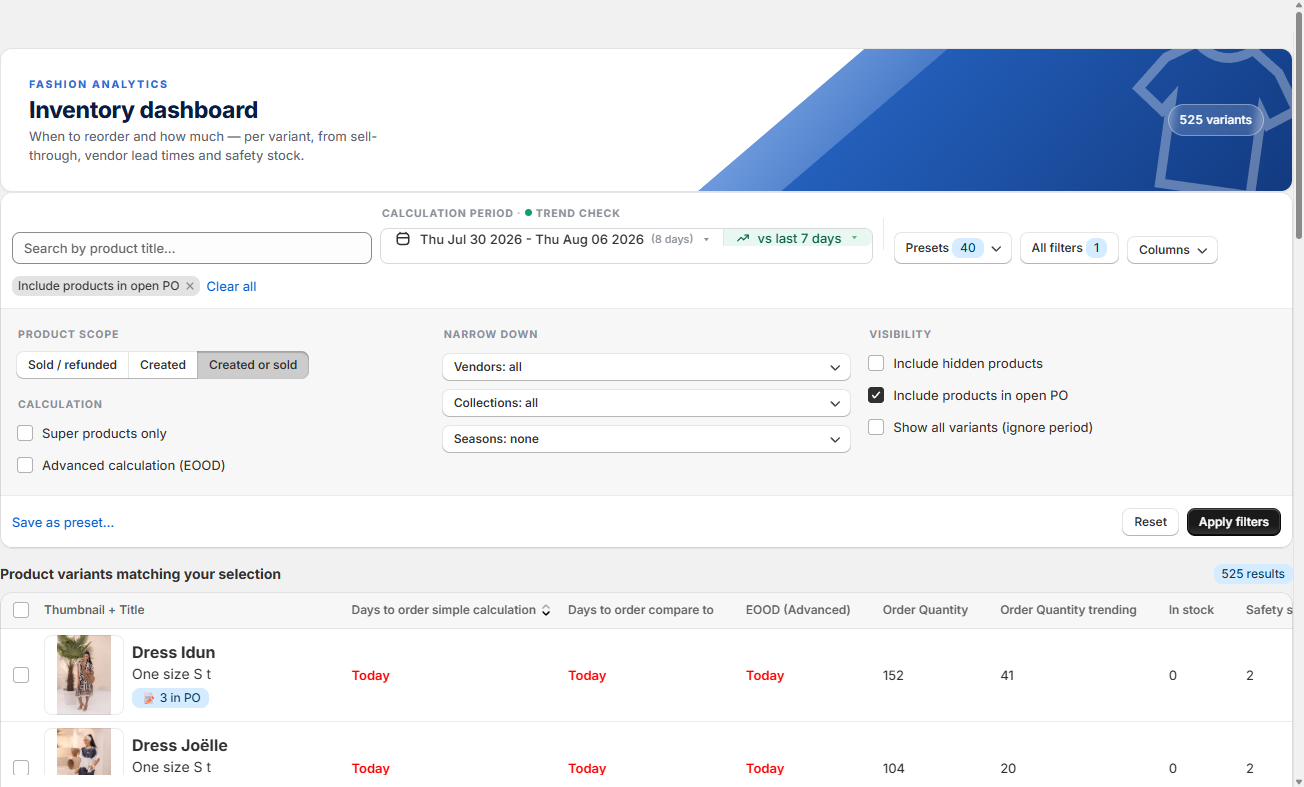
Ordered variants leave the Inventory dashboard so your to-do stays clean. Tick Include products in open PO (under Visibility) to see them anyway — marked with a blue in PO badge.
💡 Good to know
- Variants on this tab are excluded from reorder advice until received — no double ordering.
- Ordering without POs? Place in order gives you the same tracking, minus the paperwork.
- An item that won't be delivered after all: Move to hidden keeps your dashboards clean without deleting anything.
Order it, forget it — the app keeps track.
Order with a PO or without one, and let deliveries clear the list. You only step in when plans change.
Still have questions about the In order tab?
We're happy to help you get more out of it.
✉ Email us support@fashion-analytics.com